Skip to content
Sensitify
All analysis tools
Publication·Sensitify Studio

Publication workbench

Build publication-grade figures from one or many experiments: calibration curves, Randles–Ševčík plots, Tafel slopes, dose-response sigmoids, box plots, and bar graphs.

A measurement campaign produces a stack of single experiments, but a paper or report needs figures that combine many of them: a calibration curve from twenty CVs, a Tafel plot from one LSV, a dose-response sigmoid from an analyte titration. The Publication Workbench is a separate window inside Sensitify Studio dedicated to that step.

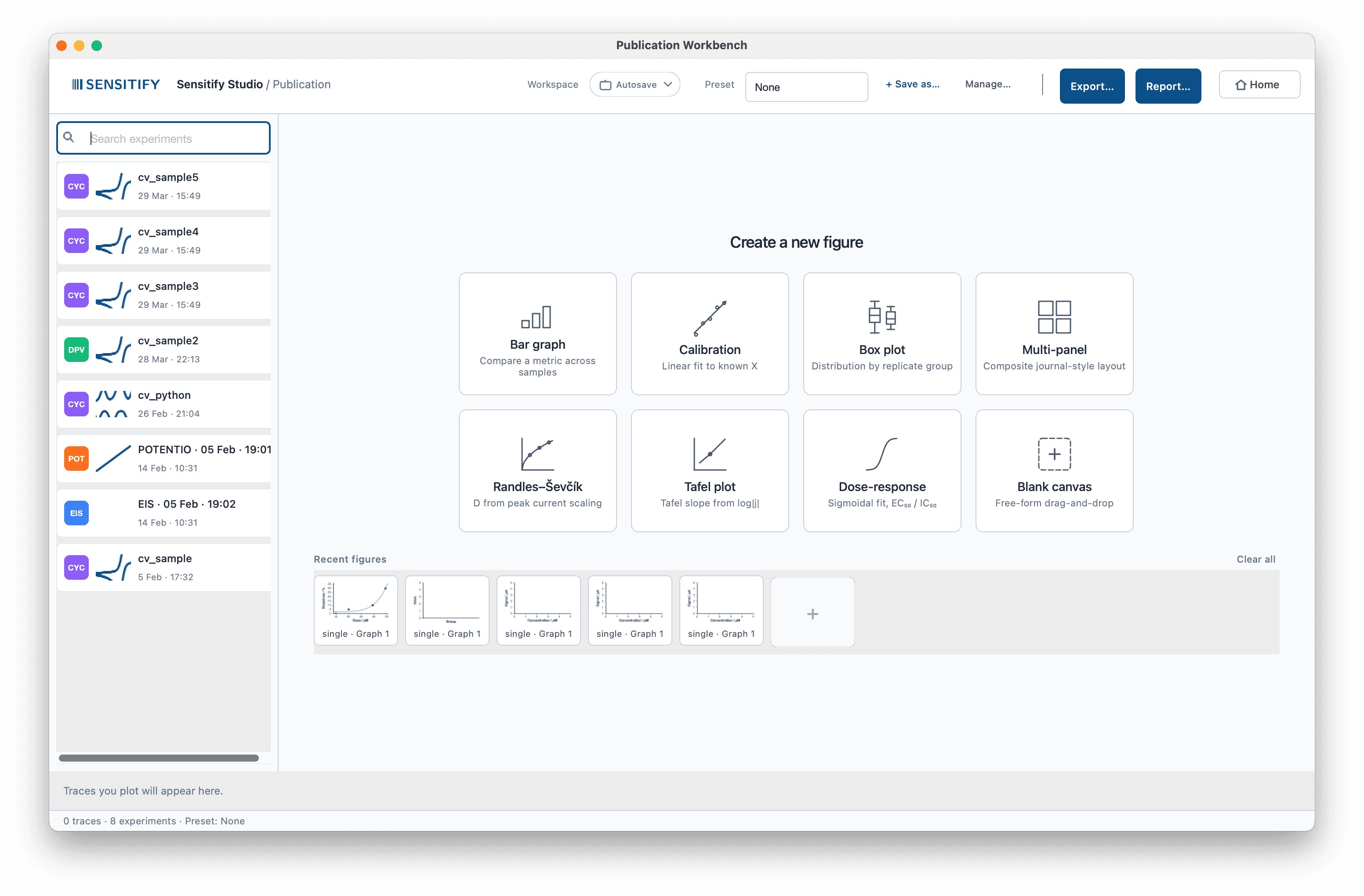
Each figure type opens an in-canvas analysis mode. The left rail becomes a 5-column data editor, the centre becomes a live publication-grade canvas, and the fit recomputes 100 ms after every edit. Five built-in journal presets (Nature, IEEE, ACS, Presentation, plus the Sensitify default) re-skin every trace on the canvas in one click.

When to use it

How it works

Click an analysis mode card from the welcome grid, the header buttons, or a right-click on the experiment library. The left rail switches to a data table (include · label · X · Y · delete) with a `From experiments` / `Manual entry` toggle. Paste from the clipboard or import a CSV; the fit panel updates within 100 ms of every edit.

Plot and table are linked both ways. Clicking a point scrolls the table to its row and rings the marker; right-clicking a suspect point and choosing **Exclude from fit** re-runs the fit without it. Cmd+Z is 32 deep inside the mode, so trying things has no cost.

The active publication preset drives axis fonts, colours, and frame style across every trace at once. Saving the current state as a named preset captures the per-mode configuration so a recurring setup like 'MIP-glucose Mar 2026' is one click to reload.

Sensitify Studio
Publication workbench in Sensitify Studio

Parameters you set

Mode

Typical: Calibration

Calibration, Randles–Ševčík, Tafel, dose-response, box plot, or bar graph. Each mode has its own data editor, fit panel, and inspector. Bar graph is a 3-tab modal; the other five are in-canvas.

Source

Typical: From experiments

From experiments (drag from the library) or manual entry (paste / CSV / TSV). The two buffers are independent, so switching modes never loses what you typed.

Per-mode parameters

Calibration exposes a concentration unit picker; Randles–Ševčík exposes n, A, C, T spinboxes; Tafel exposes anodic and cathodic fit-window edges; dose-response exposes per-parameter locks and a log-X toggle; box plot exposes notched and jittered toggles.

Publication preset

Typical: Nature

Five built-ins (None, Nature, IEEE, ACS, Presentation) plus user-saved slots. Switching reskins every trace on the canvas without touching the data.

Example

Walkthrough

Build a calibration curve from yesterday's CV runs

  1. 1Open Sensitify Studio, click Publication in the toolbar.
  2. 2In the library, Cmd-click the five cv_5µM, cv_10µM, cv_15µM, cv_20µM, cv_25µM experiments. Right-click → Calibrate from selection.
  3. 3The left rail switches to the calibration editor with one row per experiment. Type the concentrations into the Conc column; the Signal column auto-fills from the experiments' peak currents.
  4. 4Watch the fit panel: slope ≈ 0.50 µA/µM, R² ≈ 0.999, LOD ≈ 0.16 µM, with a 95 % CI band drawn around the fit line.
  5. 5Type 35 in the Predict input to back-calculate the concentration for a 35 µA QC sample with its prediction interval.
  6. 6Pick the Nature preset, click Export, save as PDF.

Result

A calibration curve in publication-house style with slope, R², LOD, and an inverse-predict readout. Total time around 30 seconds; the same task in Excel + Origin typically takes 5 to 10 minutes.

In Sensitify Studio

Open the Publication Workbench from Sensitify Studio's toolbar (the Publication button with the chart icon). Studio stays running behind it. Workspace switching, named per-mode presets, and Export / Report buttons on the header make recurring figure work a one-click recall instead of a reset.