The position of a voltammetric peak identifies the species and its height measures the amount. Peak finding in Studio reads both from the scan and integrates the charge under each peak at the same time.
The same routine works on CV, DPV, and SWV.

Detection
Locate the peaks in a voltammogram and report their potential, current, and charge.
The position of a voltammetric peak identifies the species and its height measures the amount. Peak finding in Studio reads both from the scan and integrates the charge under each peak at the same time.
The same routine works on CV, DPV, and SWV.
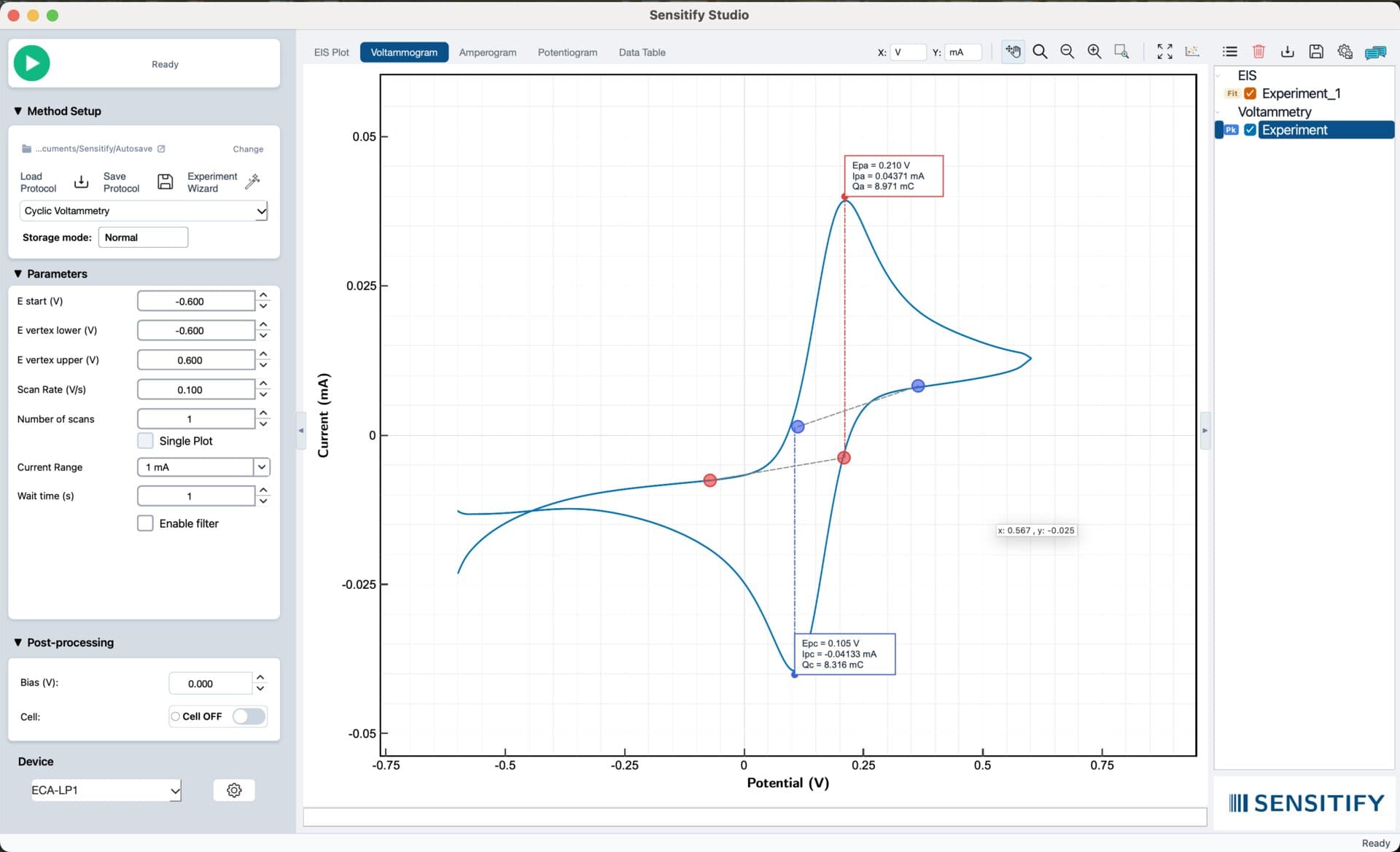
Studio scans the voltammogram for local maxima (anodic peaks) and minima (cathodic peaks), places a marker at each one, and records the potential and current.
For each peak it also finds the inflection points on either side, draws a baseline between them, and integrates the area between the trace and the baseline to give the charge Q.
Detection
Automatic. Anodic and cathodic peaks are found without any threshold to set.
Baseline
Drawn automatically between the inflection points on either side of the peak. The endpoints are shown on the plot and can be moved in the Pk window.
Result. A calibration slope, intercept, R², and limit of detection, with every peak current traceable to its scan.
Peak finding opens from the Pk badge next to any voltammetry experiment in the right sidebar. The detected peaks are marked on the plot and their values appear in the peak tooltip.
Step-by-step instructions: Find peaks