
The Sensitify ECA series is a USB-connected electrochemical analyser. This page covers the steps that are the same for every model: power, USB, installing Sensitify Studio, and a first measurement. For the differences between models, see device quickstart.
What's in the box
ECA-LP1:
- The instrument
- USB-C PD adaptor with PPS support and a regional mains plug
- Cell cable, 1 m, shielded, with banana connectors and detachable crocodile clips
- USB-C host cable
- Dummy cell
- Carrying case
ECA-5M, ECA-500k, and ECA-Zero:
- The instrument
- Four 30 cm stackable banana plug leads and four detachable crocodile clips
- USB-C cable
- Test fixture
- Dummy cell
- Carrying case
The full list for each model is in the "In the box" section of its product page.
If anything is missing or damaged, contact support within 14 days of delivery.
System requirements
- macOS 12 or later, or Windows 10 or later
- A free USB-C or USB-A port. The cable provides USB-C on the instrument side
- 500 MB of disk space for Sensitify Studio
No drivers are required on macOS 12 or later or Windows 10 or later. The instrument appears as a USB device that Sensitify Studio opens directly.
First connection
- ECA-LP1: plug the USB-C PPS power supply into the wall and
connect it to the instrument's
Powerport. The status LED on the front panel turns red. The other models are powered from the PC's USB port and need no separate supply. - Connect the USB-C cable from your computer to the instrument's
PCport. The LED turns green when the instrument is connected to Studio.
For the full LED reference (and what to do if it's blinking green), see common issues.
Install Sensitify Studio
- Open the downloads page and download the installer for your operating system.
- Run the installer. On first launch, Studio detects the instrument automatically and the status panel shows the device model with a green dot.
Your first measurement
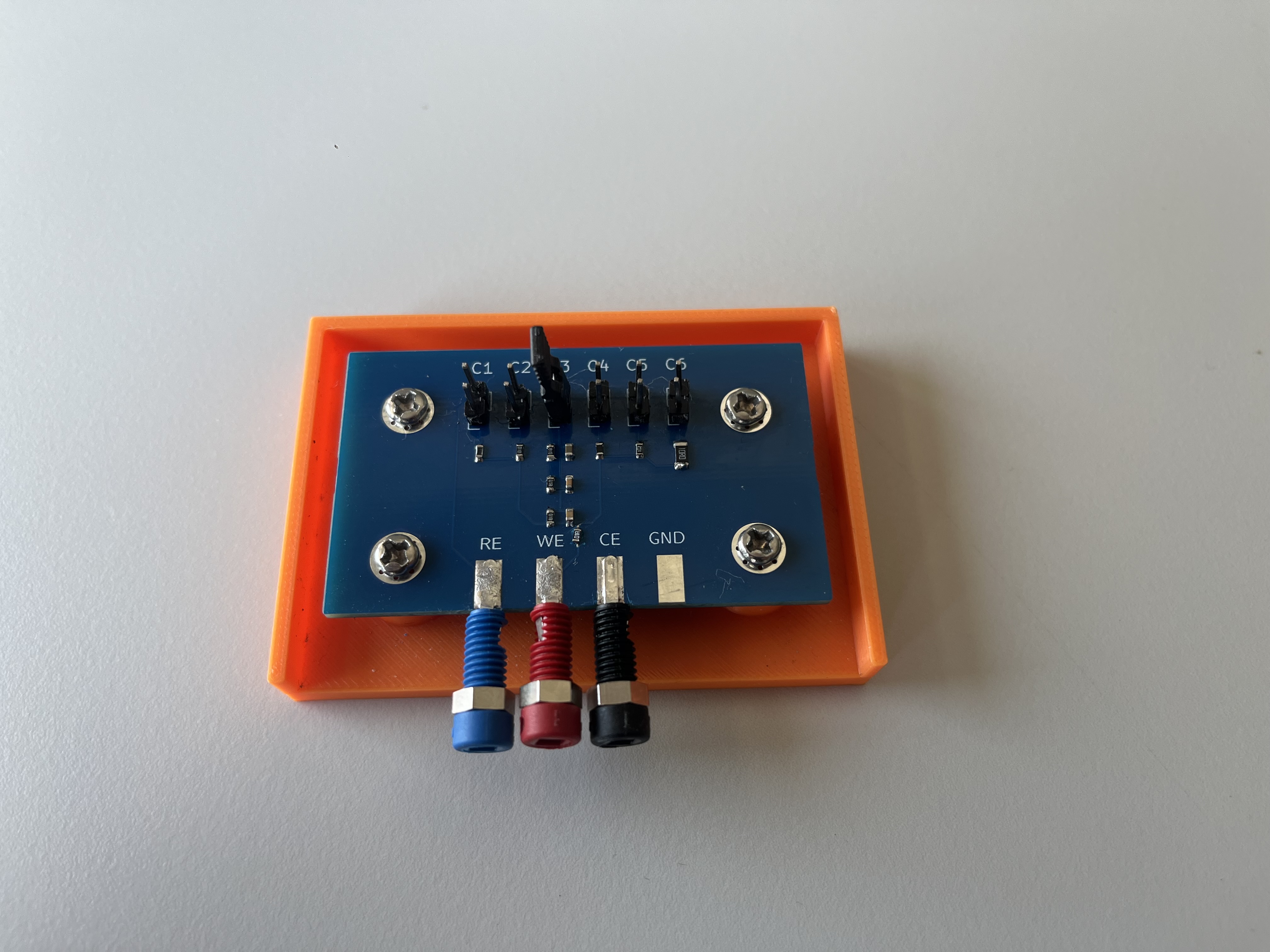
The dummy cell is a small circuit of resistors and capacitors with a known frequency response. Measuring it checks that the cable, instrument, and software are working before you connect a chemical cell.
-
Plug the dummy cell into the electrode cable.
-
In Studio, select Electrochemical impedance spectroscopy from the technique list.
-
Set the start frequency to 500 kHz and the final frequency to 5 Hz.
-
Set the number of frequencies to 50 with logarithmic distribution.
-
Set VAC to 50 mV and VDC to 0 V.
-
Set the wait time to 1 second.
-
Click Start.
The result should match the trace in the video below.
If your trace looks noisy or far from the expected shape, see common issues. For a deeper check, fit a circuit to the dummy-cell spectrum and confirm the recovered R and C values match the components on the board.
If something goes wrong
- Studio does not see the instrument. Try a different USB-C cable. USB-C charging cables do not always carry data.
- The LED never turns green after plugging in USB. Unplug the power, wait a few seconds, and plug it back in.
- The trace looks noisy. Check that the dummy cell is fully seated in the cable and nothing is touching the electrode contacts.
More checks are in common issues.