
A firmware update is a single file. You upload it to the instrument through Sensitify Studio, and the device restarts on the new version. If anything goes wrong mid-update, the instrument falls back to the previous firmware on the next power cycle.
Update from Studio
-
Get the latest firmware file for your instrument model from the downloads page.
-
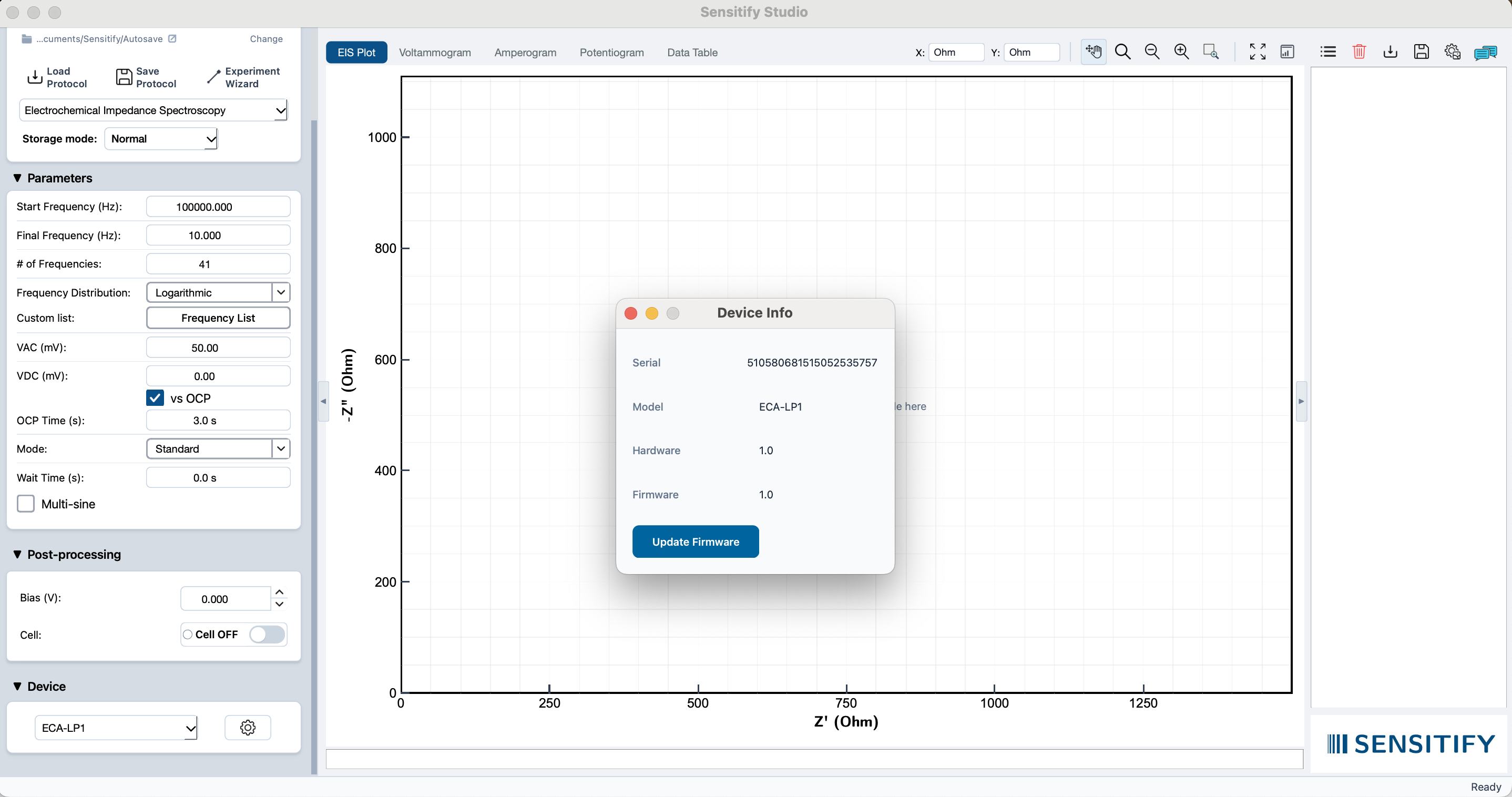
In Studio, open Settings → Upload firmware.
-
Select the firmware file you downloaded. Studio shows the target version and asks for confirmation.
-
Confirm. The status LED on the instrument blinks while the new firmware is written. The instrument restarts on its own when the upload finishes.
The update takes under a minute. The full procedure recorded on an ECA-LP1:
Settings → Upload firmware → pick the file → confirm → restart.
Verify the update
After the restart, the Settings → About view in Studio shows the firmware version. Check that it matches the file you just uploaded.
If something goes wrong
If the upload is interrupted (Studio crashes, the cable comes loose, the laptop sleeps), the instrument keeps running its previous firmware. Reconnect, open Studio, and start the upload again.
If the upload completes but the instrument doesn't show the new version, contact support with the firmware file you used and the version Studio reports.