Sensitify Studio keeps a few preferences between sessions and lets you set its appearance. This page covers the appearance options, the layout it restores on launch, the keyboard-shortcut reference, and the recent-files list.
Appearance: system, light, or dark
Studio has a dark theme that covers the whole application, including the Publication Workbench, the circuit-fit window, and all dialogs.
By default it follows your operating system and switches live when the system appearance changes. To set it by hand, use View → Appearance and pick System, Light, or Dark. The choice is remembered between sessions.
Dark mode is display-only. Anything you export, copy to the clipboard, or save as a figure renders on a white background regardless of the on-screen theme, so a dark workspace never changes how your published or printed figures look.
Window layout
Studio remembers its window size, screen position, and side panel widths between sessions and restores them on the next launch, so it opens the way you left it. The Publication Workbench remembers its own layout the same way, independently of the main window.
View → Reset Window Layout returns everything to the default arrangement.
Keyboard shortcuts
A built-in reference lists every shortcut, grouped by area (the main window and the Publication Workbench). Open it from Info → Keyboard Shortcuts or with Cmd/Ctrl + ?. Each shortcut displays with the symbols for your platform, ⌘-style on macOS and Ctrl on Windows.
Cmd/Ctrl + C copies the active plot to the clipboard as a high-resolution image. See Export for publication for the full clipboard and export options.
Recent files
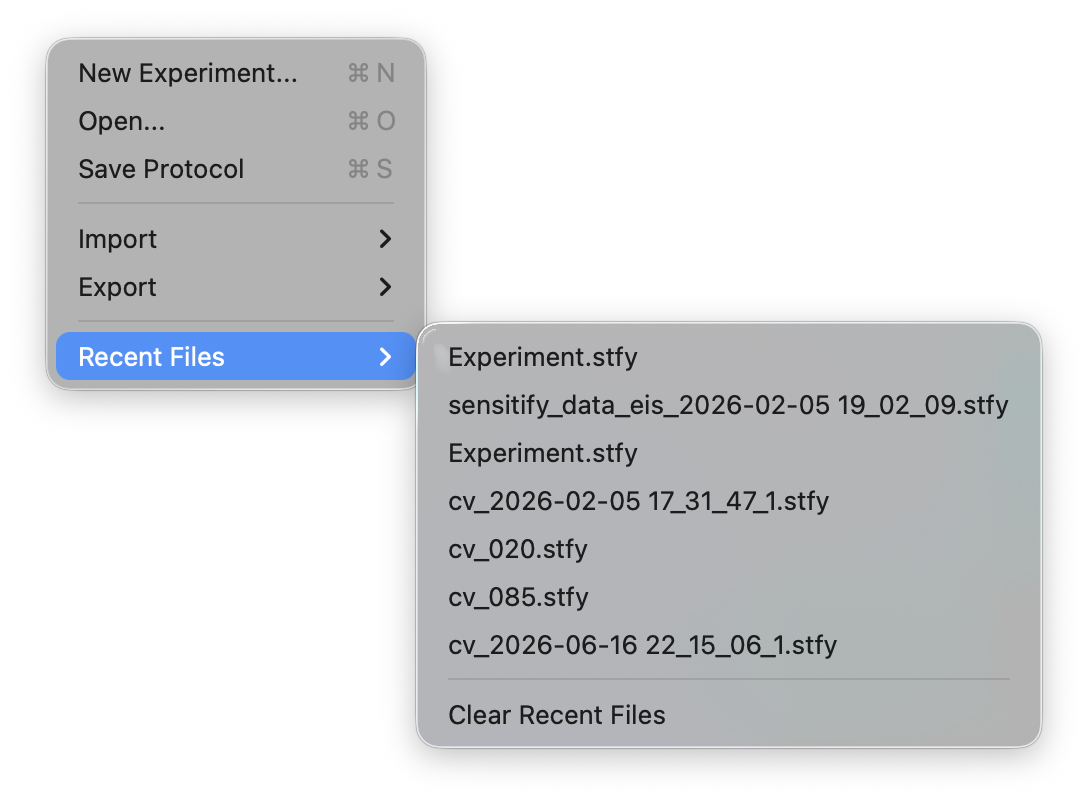
File → Recent Files lists the last ten experiment files you opened. The list is kept between sessions; Clear Recent Files at the bottom empties it.